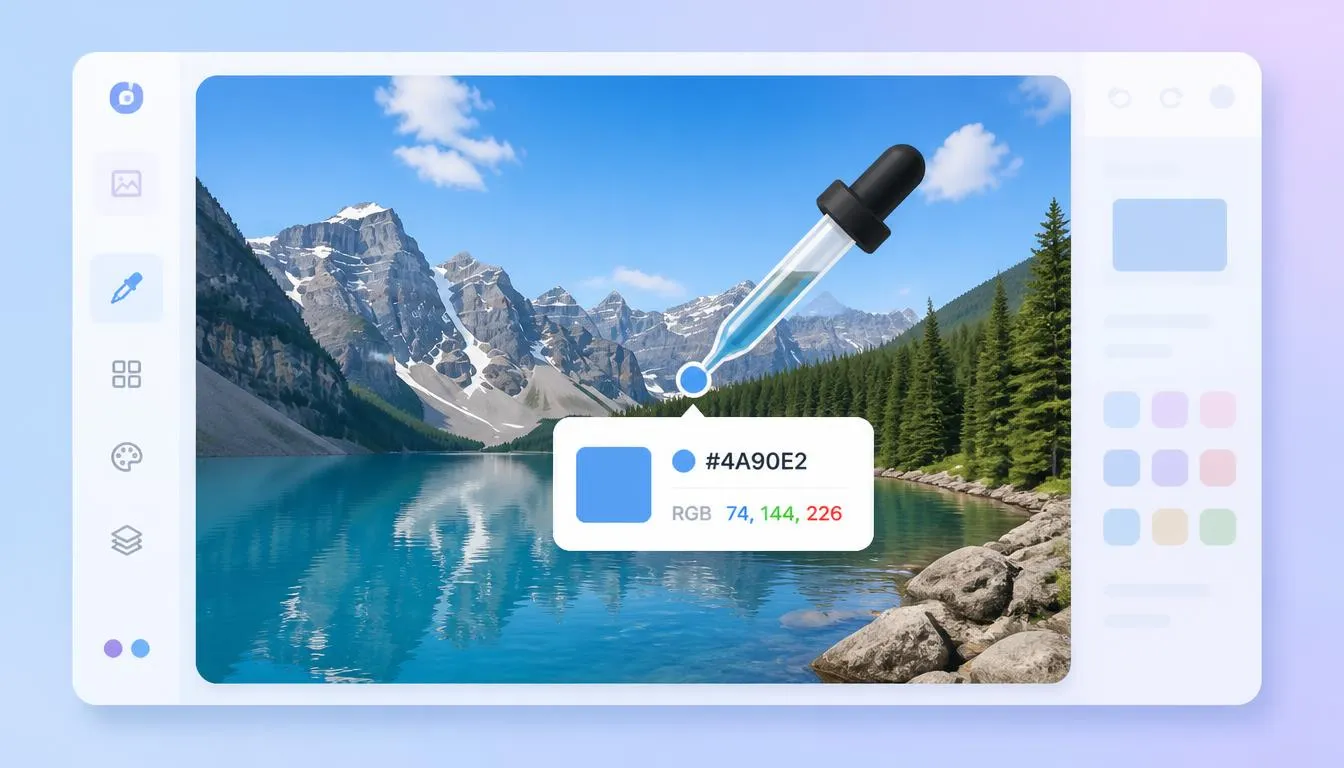
Our free online color picker lets you identify the exact digital color footprint of any pixel in seconds. By uploading an image and dropping the digital eyedropper on any specific area, the tool instantly returns precise hex codes, RGB values, and a live preview swatch.
There is no software installation, sign-up, or advanced design experience required. Whether you are a front-end developer looking to pull exact UI elements from a client mockup, or a graphic designer asking, “what color is this?” about a reference photo, our image color picker provides a fast, mathematically accurate color finder built directly into your browser.
What Is an Image Color Picker?
An image color picker is a specialized web utility that captures and identifies the exact numerical color value of a specific point in a graphic, on a screen, or within a design file.
Instead of guessing a hex code color by eye or manually tweaking sliders until a shade looks “close enough,” the picker samples the precise underlying pixel data. It then converts that data into a standardized format that can be seamlessly reused in CSS code, design software (like Figma or Photoshop), or brand style guides.
Our version works directly from any uploaded image, functioning as both an eyedropper and an exact color code picker in a single, intuitive interface. It bridges the gap between visual inspiration and technical execution, allowing you to pick color from image assets with absolute certainty.
Color Picker vs. Manual Color Matching
Why not just eyeball the color? Human perception is highly unreliable when it comes to matching digital colors. How you perceive a shade shifts dramatically based on ambient room lighting, your monitor’s screen calibration, and optical illusions caused by surrounding colors. Two designers can look at the same image and estimate two entirely different color codes.
A digital picture color picker removes all human bias and guesswork. By reading the actual data rendered on the digital canvas, it returns the same precise value every single time. That precision matters most when a color needs to match exactly, such as replicating a strict corporate brand palette, ensuring UI consistency across hundreds of web pages, or acting as a digital alternative to a physical pantone color finder.
How to Find a Hex Code From an Image
Wondering how to find hex code from image uploads without downloading heavy software? Our workflow is fully optimized for speed, accuracy, and user privacy:
- Upload Your Image: Drag and drop a file, or select one directly from your device. JPG, PNG, and WebP formats are all fully supported. Because the tool uses client-side processing, your images are never permanently saved or stored on our servers.
- Target with the Eyedropper: Hover your cursor over the uploaded image. A live, magnified preview interface follows your mouse, allowing you to target a single, specific pixel for pinpoint accuracy before you click.
- Extract the Color Code: The moment you click, the image color picker displays the color’s HEX code and RGB values alongside a visual swatch. The values are ready to copy straight into your digital workspace.
Key Features of Our HEX Color Picker
- Pixel-Perfect Eyedropper Precision: Sample any single pixel, even in high-resolution photographs or compressed images, for flawless accuracy.
- Simultaneous Dual Output: Every pick generates a HEX code and RGB value simultaneously. You get instant results without ever needing to use a separate color converter for manual rgb to hex or hex to rgb translation.
- Direct Browser Operation: Analyze screenshots, photographs, logos, or design mockups natively. You can reliably find color from image assets securely without leaving your current browser tab.
- No Installation Required: The tool runs entirely online. There is nothing to download, no subscriptions to manage, and no bulky browser extensions slowing down your computer.
- One-Click Clipboard Copy: Tap to copy the extracted hex codes straight to your clipboard for rapid deployment in code editors or graphic design tools.

“What Color Is This?” , The Ultimate Solution
Visual inspiration can strike at any moment. When you spot a beautiful, moody aesthetic on a competitor’s website or a vibrant hue in a digital photograph, capturing that exact feeling is difficult.
This color picker answers the question directly. When you need to extract aesthetic hex codes for a new project, just take a screenshot and upload it. By reading the actual mathematical pixel data, the tool acts as an authoritative color identifier, returning the definitive value rather than a rough approximation.
Common Use Cases for Designers, Developers & Artists
Our tool is engineered to support the daily workflows of modern digital professionals:
- Web & UI Design: Extract exact colors from provided mockups, wireframes, or reference sites to keep a design system mathematically consistent across an entire domain.
- Front-End Development: Grab a precise HEX value from a flattened image asset to hardcode into CSS, Tailwind configurations, or a design-token architecture.
- Brand & Logo Work: Identify a brand’s exact core colors from an existing JPG or PNG logo file when official brand guidelines, SVG files, or vector assets aren’t available to you.
- Digital Art & Illustration: Sample reference photos to perfectly match realistic skin tones, complex lighting scenarios, or environmental shadows while painting digitally in software like Procreate, Corel, or Photoshop.
From Pixel to Palette: What to Do With Your Extracted Color
Once you have identified your base color, the next logical step in your design workflow is creating a cohesive, visually appealing design system. You can easily take the exact hex code you just extracted and use our color palette generator to automatically build complementary, analogous, and monochromatic combinations.
Whether you want to generate a full color palette from image inspiration or build a brand-new UI theme around a single extracted pixel, having the true, foundational hex code is the critical first step.
Before deploying these newly generated colors for web typography, buttons, or interactive elements, we highly recommend verifying them with a free color contrast checker to ensure your custom UI meets stringent WCAG (Web Content Accessibility Guidelines) standards.
(Note: Need quick access to standard web-safe shades, pastel tones, or basic HTML colors instead of utilizing an image upload? Browse our dedicated HEX color picker interactive library).
Frequently Asked Questions (FAQ)
What is the most accurate way to find a color’s hex code from an image?
The most accurate method is to upload your file into a dedicated image color picker. By clicking directly on the image with a digital eyedropper, the tool reads the underlying raw pixel data and outputs the exact hex code and RGB value instantly. This is vastly more accurate than estimating a code by eye.
Can I use a color picker on a website screenshot?
Yes. Any standard image file, including a screenshot of a website saved as a PNG or JPG, can be uploaded and sampled with the eyedropper to identify the exact colors used in that specific capture.
Does this picture color picker give both HEX and RGB values?
Yes. Every color you pick operates as a simultaneous color code calculator, delivering both the standard HEX code and its corresponding RGB value at the exact same time, along with a visual preview swatch.
What’s the difference between a color picker and a color finder?
The terms are largely interchangeable in the web design industry. “Color picker” more often refers to the mechanical interaction (using an eyedropper tool to click a pixel), while “color finder” emphasizes the end result: successfully locating and identifying the exact shade.
Is this image color picker free to use?
Yes. The tool is entirely free, unlimited, and works directly in your browser, with no account creation, premium paywalls, or software installation required.
Can I pick a color directly from my screen instead of an uploaded image?
This specific web utility is built for uploaded images and screenshots. For live on-screen sampling outside of an image file, you should utilize your operating system’s built-in digital color meter or your web browser’s native developer eyedropper tools.