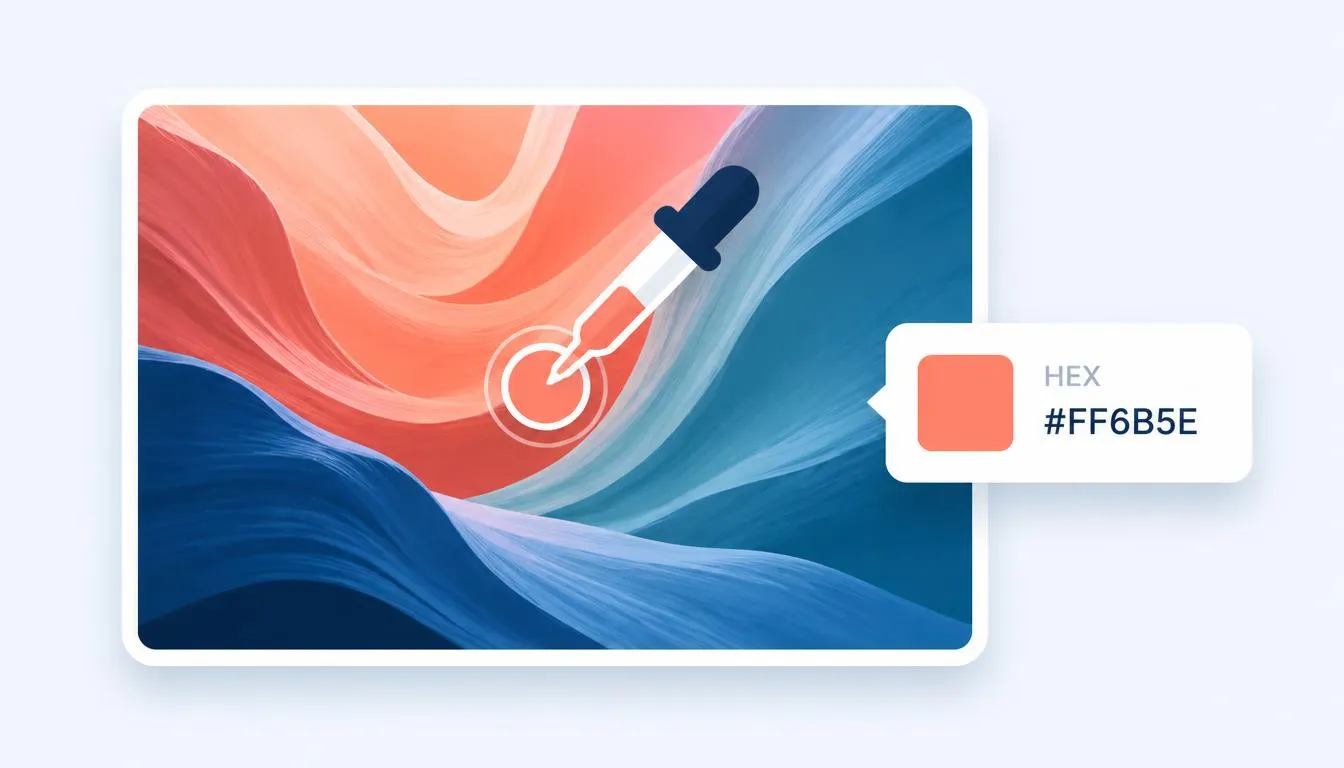
You spot the perfect shade in a client’s logo, a photograph, or a screenshot of a competitor’s site, and you need its exact HEX code, not a rough guess. Eyeballing color from a monitor is unreliable: the same teal can look slightly greener or bluer depending on your screen, and “close enough” isn’t a real color system. The fix is a pixel-level eyedropper tool that reads the actual color data behind the image and hands you a precise HEX, RGB, and HSL value in seconds.
This guide walks through every practical way to get color from image files, from a free browser-based picker to desktop software and mobile workflows, plus how to convert what you find into the format your project needs, and how to avoid the accuracy traps that catch most people off guard.
What Does “Getting the Color From an Image” Actually Mean?
Every digital photo is a grid of pixels, and every pixel stores a red, green, and blue value between 0 and 255. When you use an eyedropper tool, you’re not guessing, you’re reading the exact RGB numbers stored at that single pixel and converting them into a HEX code (a six-digit shorthand like #2E86AB) or an HSL value (hue, saturation, lightness). This is, quite literally, hex code lookup from pixels.
It’s worth separating two related but different tasks:
- Single-color picking: sampling one exact pixel to get one precise HEX/RGB value (e.g., matching a logo’s brand blue).
- Full palette extraction: analyzing the whole image to surface its five or six most dominant colors, useful for building a color scheme from a photo or moodboard.
Both start the same way, by getting accurate color from an image rather than trusting your eyes or your monitor’s calibration.
Method 1: Use a Free Online Image Color Picker (No Software Needed)
The fastest, most accurate way to find color from image files is a browser-based color picker. These tools read your image’s pixel data directly in the browser (typically via the HTML5 canvas API), which means the values you get are pulled from the raw file, not from how your screen happens to render it.
Colorschemecalculator’s image color picker does exactly this: upload any JPG, PNG, or WebP file, and it becomes a live canvas you can sample from pixel by pixel.
- Upload your photo or screenshot (drag-and-drop or file select).
- Zoom into the area you want, especially near edges or fine detail.
- Hover or click with the eyedropper to sample the exact pixel.
- Copy the HEX, RGB, or HSL value shown in the results panel.
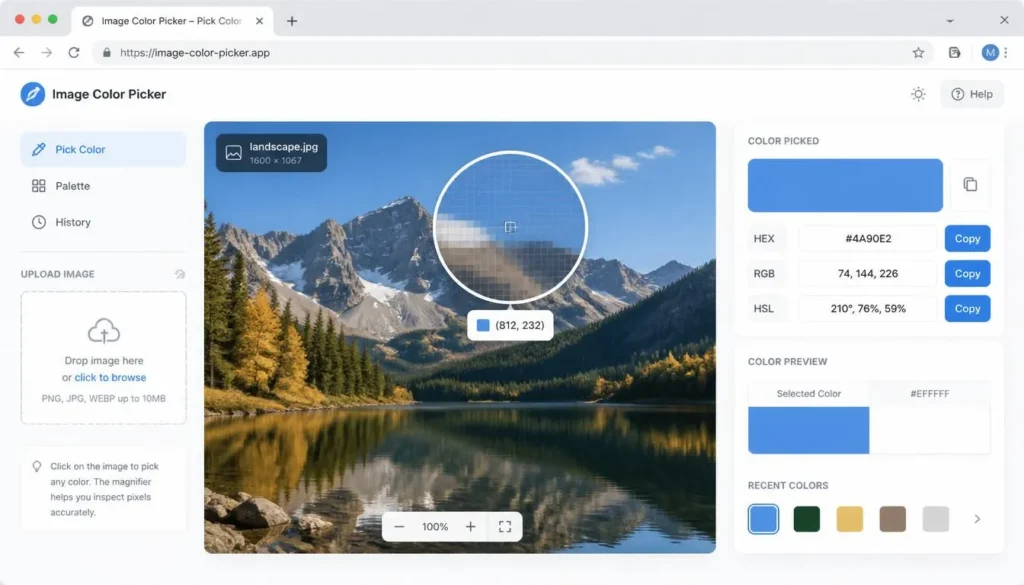
Tip: zoom in before you pick color from image files with soft edges, gradients, or text. A single click on an unzoomed image can land on a blended, anti-aliased pixel instead of the true color you’re after.
Method 2: Browser Extension Eyedropper Tools
Chrome, Edge, and Firefox all support eyedropper extensions, and modern browsers now ship a native EyeDropper API that lets any webpage offer a system-level color picker. These are handy for pulling a color match directly off a live webpage without saving a screenshot first. The trade-off: they only work on what’s currently rendered on your screen, so screen brightness, night-light filters, and color profile mismatches can all skew the reading slightly. For anything client-facing or brand-critical, cross-check the result against an uploaded-file picker.
Method 3: Desktop Software (Photoshop, GIMP, Affinity)
Design software gives you the most control, particularly for high-resolution or layered files. In Photoshop and Affinity, the eyedropper tool has a sample size setting, “Point Sample” reads one exact pixel, while options like “3×3 Average” blend a small neighborhood of pixels, which is often more forgiving on noisy or compressed photos. GIMP’s color picker works the same way under Tools > Color Picker. This route is worth it when you’re already working inside a PSD or need to sample from a specific layer rather than a flattened image.
Method 4: Finding Color From an Image on Mobile
On iOS and Android, the built-in Markup tool (available when annotating a screenshot) usually includes a basic eyedropper, and several dedicated color-picker apps exist in both app stores. For anything beyond a quick reference, though, the more reliable path is still to save the photo and run it through a proper picture color picker on desktop, mobile color pickers tend to sample from the screen’s rendering rather than the underlying file, which reintroduces the calibration problem you’re trying to avoid.
From One Pixel to a Full Palette: Extracting Multiple Colors
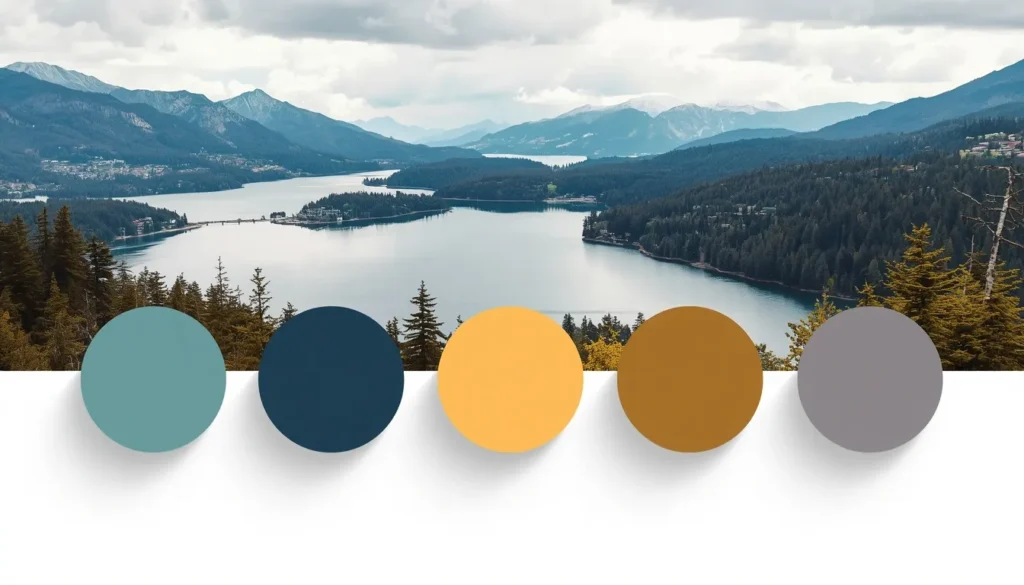
Sometimes you don’t need one color, you need the whole story an image is telling. Color palette from image extraction analyzes every pixel and clusters them into the handful of shades that actually define the photo’s look, which is exactly how a lot of “mood board to website theme” workflows start.
Once you’ve pulled individual colors, you can turn them into a cohesive scheme using a tool like Create Color Palette, which lets you combine extracted colors with complementary, analogous, or triadic shades to build a full, usable palette rather than a single isolated swatch.
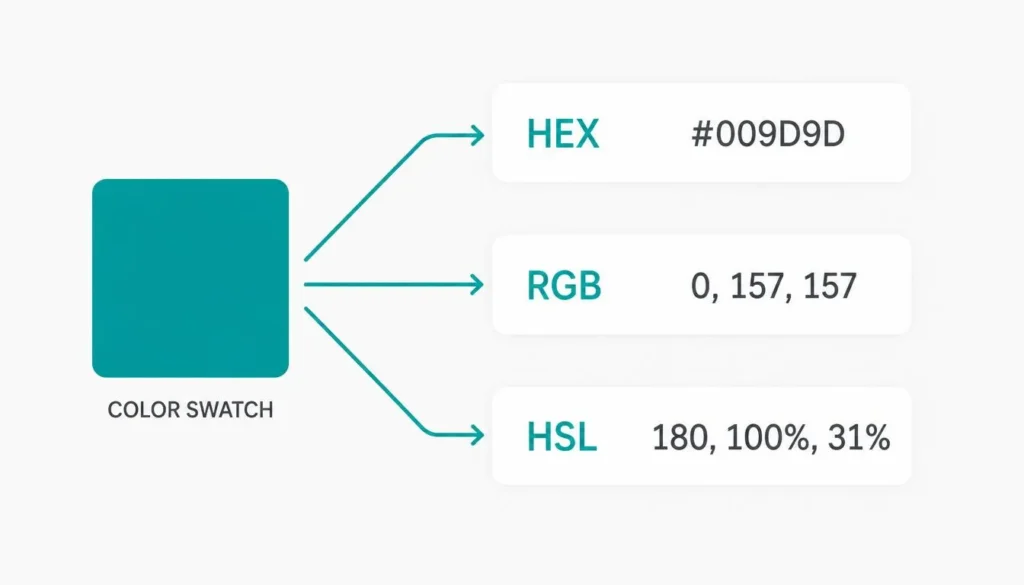
Converting the Color You Found: HEX, RGB, and HSL Explained
Once you’ve picked a color, the format you need depends on where it’s going:
- HEX (e.g., #2E86AB), the standard for CSS, HTML, and most design tools.
- RGB (e.g., rgb(46, 134, 171)), used in code, canvas graphics, and anywhere you need individual red/green/blue values.
- HSL (e.g., hsl(200°, 58%, 43%)), the most intuitive format for adjusting a color’s lightness or saturation without changing its hue.
If your extracted value isn’t in the format you need, Color Converter instantly switches between HEX, RGB, and HSL, no manual math, no rounding errors.
Why the Color You Picked Might Look “Off” (Accuracy Tips)
If a sampled HEX code doesn’t quite match what you remember seeing, one of these is usually the cause:
- JPEG compression: JPEGs discard color data to save file size, which can shift subtle tones slightly. When color accuracy matters, sample from a PNG or the original source file if you have one.
- Color profile mismatch: sRGB, Display P3, and Adobe RGB render the same numeric value with slightly different appearance across devices.
- Anti-aliasing and blending: pixels along an edge or curve are often a blend of two colors, not a pure sample, this is the single most common reason a “picked” color looks wrong.
- Ambient lighting in the original photo: a color photographed under warm indoor light will sample warmer than the same object under daylight.
The fix for all four is the same habit: zoom in, sample from a flat, evenly lit area of the image, and avoid edges wherever possible.
Checking Contrast and Accessibility After You Extract a Color
Pulling a brand color from a logo or photo is only half the job if that color is going to sit behind text or inside a button. A shade that looks great in isolation can fail accessibility contrast requirements once it’s paired with white or black text.
Before locking in an extracted color for a live design, run it through Color Contrast Checker to confirm it meets WCAG AA or AAA contrast ratios against your chosen text color.
Real-World Use Cases
- Brand matching: pulling the exact HEX code from a client’s logo screenshot so new marketing assets match perfectly.
- Web design: sampling accent colors from hero photography to build a cohesive site theme.
- Competitive research: grabbing an exact button or background color from a screenshot of a competitor’s site.
- Digital art: matching skin tones, lighting, or reference-photo colors precisely rather than mixing by eye.
Final Thoughts
Finding color from an image doesn’t need to involve guesswork, screenshots stacked in five different apps, or a color that never quite matches once it hits production. A browser-based image color picker reads the real pixel data, gives you HEX, RGB, and HSL instantly, and lets you move straight from a single sampled swatch to a full, accessible color scheme, all without installing anything.
4. FAQs (AEO / People Also Ask)
How do I find the color of an image without Photoshop?
Use a free browser-based image color picker. Upload the photo, zoom into the area you want, and click with the eyedropper to get the exact HEX and RGB values, no software installation required.
What is an eyedropper tool used for?
An eyedropper tool samples the exact color data from a single pixel in an image or on a screen, converting it into a usable code like HEX or RGB so it can be reused precisely in design or code.
Can I get the exact hex code from a photo on my phone?
Yes, though mobile eyedropper apps usually sample from your screen’s rendering rather than the raw file. For the most accurate result, upload the photo to a desktop-based online color picker instead.
Why does the color I picked from an image look different than expected?
This is usually caused by JPEG compression, anti-aliased edge pixels, or a color profile mismatch between the image and your monitor. Sampling from a flat, well-lit area of a PNG file gives the most reliable result.
What’s the difference between HEX, RGB, and HSL codes?
HEX and RGB describe a color using red, green, and blue values (in different notations) and are standard in CSS and code. HSL describes the same color by hue, saturation, and lightness, which makes it easier to tweak a shade intuitively.
Can I extract a full color palette from one image, not just one color?
Yes. Palette extraction tools analyze an entire image and surface its several most dominant colors, which is useful for turning a photo or mood board into a cohesive color scheme.
Do I need to convert HEX to RGB for web design?
It depends on the tool. CSS accepts both formats, but some canvas-based graphics or code libraries require RGB specifically. A color converter can switch between the two instantly if you need the other format.